Most guides to website speed hand you a list of fifteen things to fix and leave you to figure out where to start. That's not actually useful when you're a small business owner with limited time and no in-house developer.
This guide is organized differently: what you can fix yourself in the next 30 minutes, what's quietly slowing your site down that nobody talks about, and what genuinely needs a developer's time and budget. By the end, you'll have a priority order, not just a checklist.
Why Website Speed Actually Matters (Beyond "Google Likes It")
Speed isn't primarily an SEO issue. It's a sales issue that happens to also affect SEO.
Every extra second a page takes to load, a percentage of visitors leave before they even see your content. They don't wait to judge your offer or your design, they just close the tab. That's revenue walking away before you had a chance to make your case.
After optimizing Core Web Vitals, it was possible to significantly improve the customer experience of our ecommerce.
— Vodafone, via web.dev
Google does use page speed as a ranking factor through a set of measurements called Core Web Vitals:
- Largest Contentful Paint (LCP): how fast the main content appears
- Interaction to Next Paint (INP): how quickly the page responds when someone clicks or taps
- Cumulative Layout Shift (CLS): whether elements jump around while loading
You don't need to memorize these to fix your site, but you'll see them mentioned by testing tools, so it helps to know what they measure.
The real point of this guide isn't chasing a perfect score. It's fixing what's actually costing you visitors, in the order that gets you the most improvement for the least effort.
How to Test Your Website Speed (Before Changing Anything)
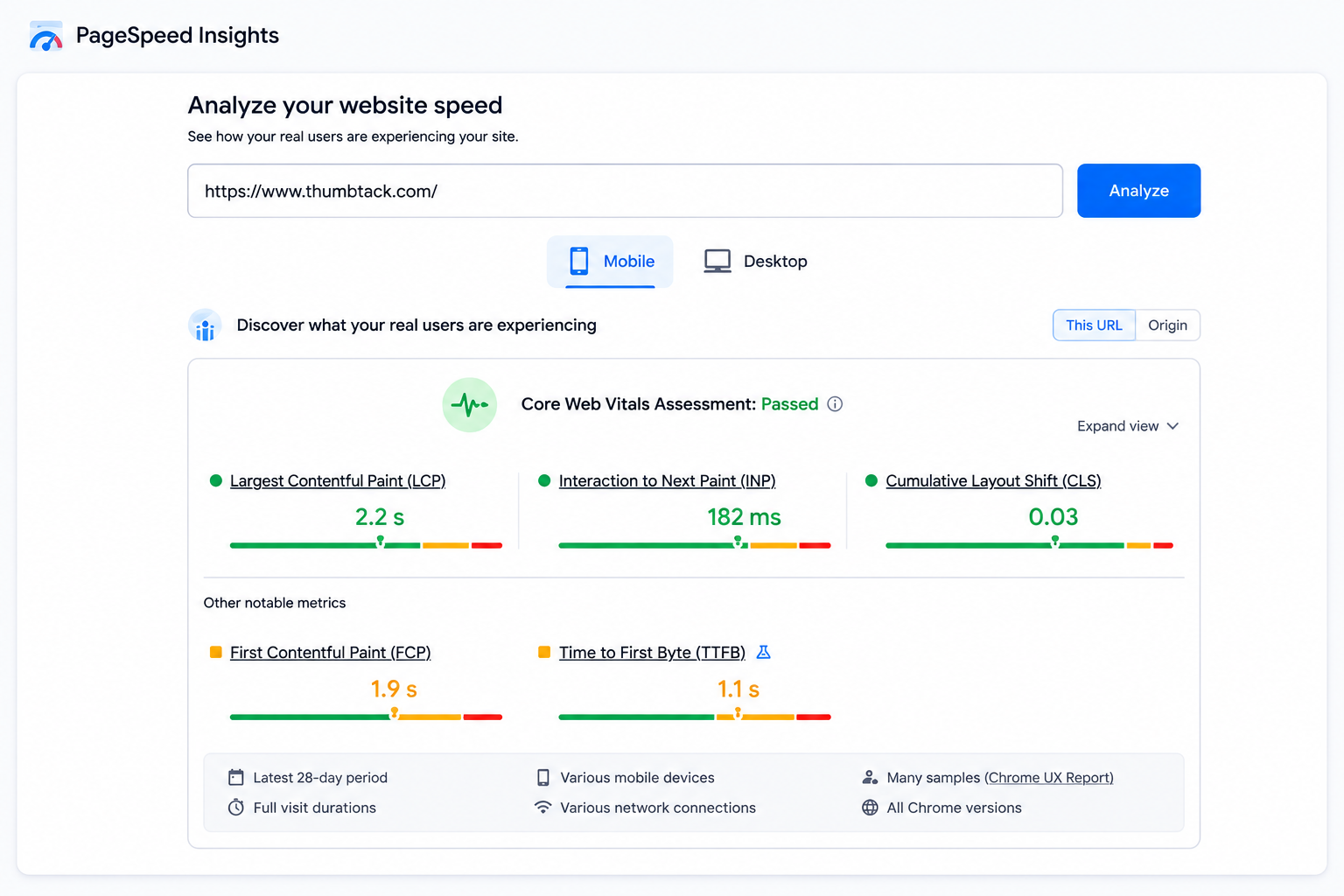
Don't guess what's slow. Test it first, or you'll waste time fixing things that were never the problem.
Go to Google PageSpeed Insights, a free tool, enter your URL, and run the test for both mobile and desktop. Mobile matters more since that's likely most of your traffic, and mobile scores are almost always worse than desktop.
You'll get a score from 0-100 and a list of specific issues. Ignore the overall score for now. What matters more is the list underneath it:
- Reduce unused JavaScript
- Properly size images
- Eliminate render-blocking resources
That list tells you exactly what's slowing you down, which is what the rest of this guide will help you act on.
Run this test now, before reading further, so you know which of the fixes below actually apply to your site.
Quick Wins You Can Do Today (No Developer Needed)
These take 15 to 30 minutes each and don't require any coding knowledge. Start here.
- Compress your images. Large, uncompressed photos are the single most common cause of slow-loading pages. If you're on WordPress, a plugin like ShortPixel or Smush will compress every image on your site automatically, often shrinking file sizes by 60-80% with no visible quality loss. On Shopify or Wix, there's usually a built-in image optimization setting buried in your admin panel, worth checking for.
- Switch to modern image formats. WebP images are smaller than JPG or PNG at the same visual quality. Most compression plugins mentioned above will convert to WebP automatically, so this often comes free with the first fix.
- Delete plugins and apps you're not using. Every WordPress plugin or Shopify app adds code that loads on your site, whether you're actively using it or not. Go through your installed plugins list and remove anything you added once and forgot about. This is one of the fastest wins available and it costs nothing.
- Turn on caching. Caching lets returning visitors load your site from a saved copy instead of rebuilding it from scratch each time. Most hosting providers have a one-click caching option in their dashboard, or a plugin like WP Rocket handles it on WordPress. If you're not sure whether caching is on, ask your host directly, it's usually a single toggle.
A small business owner running a local bakery's WordPress site did just the first two of these (image compression and format conversion) and dropped their homepage load time from 5.2 seconds to 2.1 seconds, without touching a single line of code or spending anything beyond a free plugin.
The Real Reasons Nobody Talks About (Third-Party Scripts)
Here's what most speed guides skip entirely: on a lot of small business sites, the actual biggest slowdown isn't your images or your code. It's the third-party tools you've added over time.
- Chat widgets (Tidio, Intercom, Drift) load their own JavaScript on every page, even pages where nobody uses the chat.
- Marketing pixels (Facebook Pixel, LinkedIn Insight Tag, multiple Google Analytics installs stacked on top of each other) run in the background on every visit, adding up.
- Embedded videos from YouTube or Vimeo load a chunk of their own code just to display the thumbnail, before anyone even presses play.
- Review widgets (Trustpilot, Google Reviews embeds) and font services loading multiple font weights you're not actually using anywhere on the page.
Individually, each of these seems small. Stacked together on a typical small business homepage, they can easily account for more slowdown than every image on the page combined.
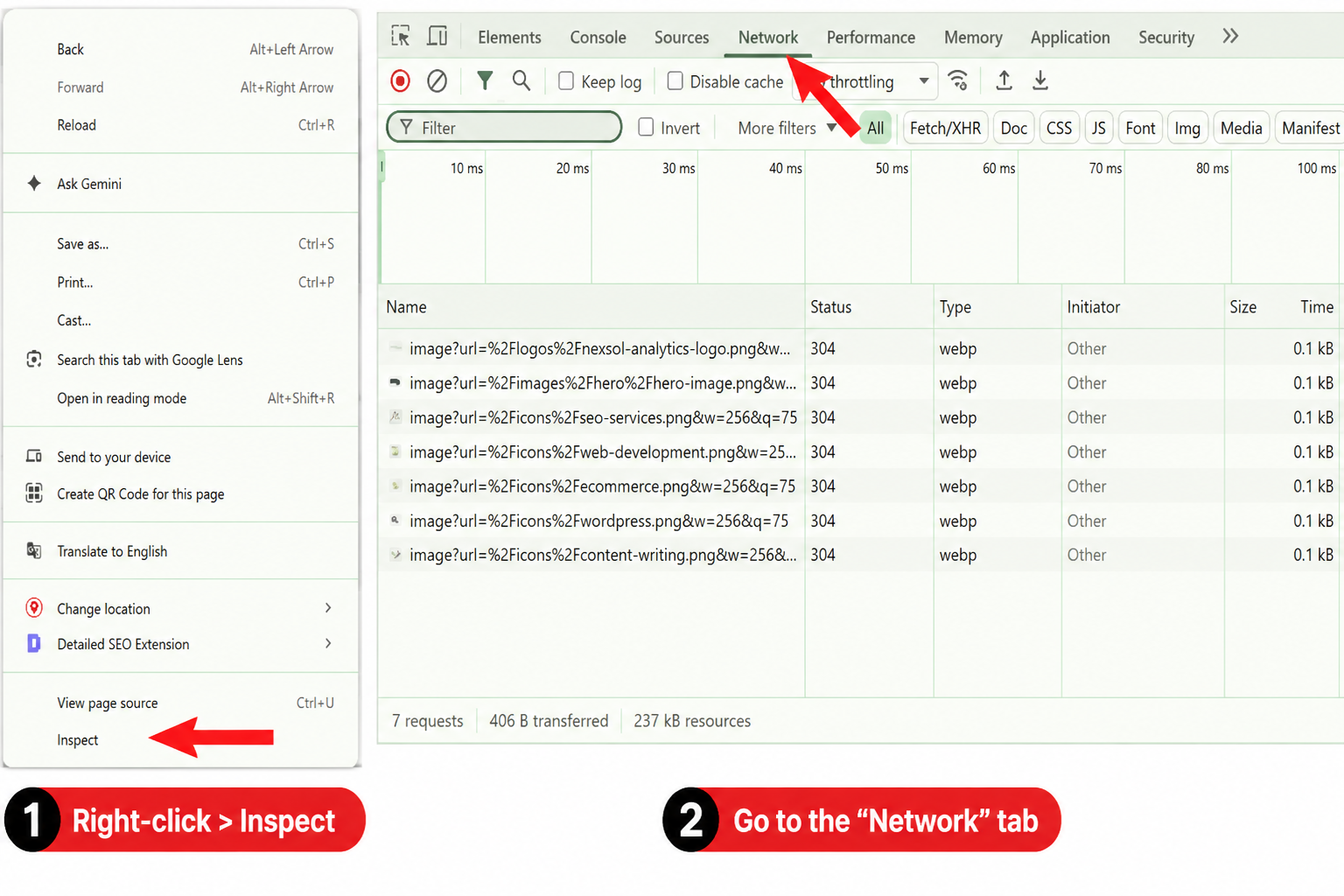
How to spot them: open your site in Chrome, right-click anywhere, select "Inspect," click the "Network" tab, then reload the page. You'll see a list of every file your site loads. Sort by size, and look for anything from a domain that isn't your own. That's usually a third-party script. If you don't recognize what it's for, or you added it once for a campaign that ended months ago, it's worth removing.
Fixes That Need a Developer (And Are Worth the Cost)
Some fixes genuinely need technical work. Here's what to actually ask for, and why it's worth paying for.
- Faster hosting. Cheap shared hosting plans are the most common reason a site's Time to First Byte (how long the server takes to start responding) is slow. Upgrading to managed hosting or a VPS is one of the highest-impact fixes available, and it's a one-time decision rather than ongoing work.
- Removing render-blocking resources. Some CSS and JavaScript files stop your page from displaying anything until they finish loading. A developer can defer non-critical scripts so your page shows content immediately while less important code loads in the background.
- Code minification and cleanup. Over time, sites accumulate CSS and JavaScript nobody uses anymore, leftover from old designs or removed features. A developer can strip this out, which shrinks every page's file size across your whole site at once.
- Setting up a CDN (Content Delivery Network). A CDN stores copies of your site's files on servers around the world, so a visitor in another city or country loads your site from a nearby server instead of one far away. This is a one-time setup that keeps paying off for every future visitor.
None of these are things to DIY unless you're comfortable in your site's code. But they're also not endless ongoing expenses, most are a single project, not a subscription.
Mobile Speed: Why It's Not the Same Problem as Desktop
A site can score reasonably well on desktop and still feel genuinely slow on a phone, and it's not just about screen size.
Desktop testing usually assumes a fast, stable internet connection. Mobile visitors are frequently on 4G, on a train, in a building with weak signal, or sharing bandwidth with other apps running in the background. The same page that loads in 1.5 seconds on your office WiFi might take 4-5 seconds on a customer's phone in an area with patchy coverage.
This is why testing on PageSpeed Insights' mobile setting specifically matters, it simulates a slower connection deliberately, rather than testing under ideal conditions. If your mobile score is significantly worse than your desktop score, the gap itself is telling you something: your site is carrying more weight than a mobile connection can comfortably handle.
The fixes are the same ones covered above (image compression, removing unnecessary scripts, caching), but mobile is where they matter most, since that's usually where the visitor has the least patience and the weakest connection to begin with.
How Much Is Slow Speed Actually Costing You?
It helps to make this concrete rather than abstract.
According to research on user perception of load times, the average web user perceives load times as being 15% slower than they actually are, and the average person believes they spend 9 minutes per day waiting for slow websites (SpeedCurve, via research cited by Tammy Everts). That perception gap matters because frustrated visitors don't wait around to be proven wrong, they simply leave.
For every additional second a page takes to load, 10 per cent of users leave.
— Matthew Clark, Lead Technical Architect at the BBC
For a site with even modest traffic, that adds up fast, and it's the same math behind the bakery example earlier in this guide.
If your site currently takes 5 seconds to load and industry data suggests a meaningful share of visitors abandon a page in that time, every one of the quick wins above isn't just a technical improvement. It's directly recovering visitors who were leaving before they saw what you had to offer.
Where Speed Fixes Hit Diminishing Returns (Honest Limitations)
Not every speed fix is worth chasing, and it's worth being honest about where the effort stops paying off.
Going from "slow" to "good" matters far more than going from "good" to "perfect." The jump from a 5-second load time to 2.5 seconds recovers real visitors. The jump from 2.5 seconds to 1 second, while nice, rarely moves the needle nearly as much. Don't spend developer budget chasing a perfect 100 score once you're already in good territory.
A fast site with a weak offer or confusing design still won't convert well. Speed removes a barrier, it doesn't create a reason to buy. If your site is fast but visitors still don't understand what you sell or why they should choose you, speed was never the actual problem.
Sometimes the real answer is a rebuild, not more optimization. If your site is built on an old platform, loaded with years of accumulated plugins and workarounds, there's a point where patching individual issues costs more in developer time than starting fresh on a modern, lighter setup would. If you've done the quick wins and the developer fixes and you're still struggling, that's worth an honest conversation rather than more patchwork.
Your Website Speed Action Plan (Priority Order)
- Test first. Run PageSpeed Insights on both mobile and desktop before changing anything.
- Do the quick wins. Compress images, switch to WebP, delete unused plugins, turn on caching.
- Audit your third-party scripts. Use the Network tab to find what's loading, and remove what you don't need.
- Bring in a developer for the technical fixes. Hosting upgrade, render-blocking resources, code cleanup, CDN.
- Retest. Confirm the changes actually moved your score and, more importantly, that the page feels faster to use.
- Recheck every few months, not obsessively, but sites accumulate new plugins and scripts over time the same way they did the first time around.
FAQ
How fast should my website load?
Google considers a load time under 2.5 seconds good, up to 4 seconds acceptable, and anything beyond that is likely costing you visitors. For mobile specifically, aim for the same target, since that's usually where your site is slowest.
Does website speed really affect SEO rankings?
Yes, though it's one factor among many. Google uses Core Web Vitals as part of its ranking signals, but speed alone won't rank a page with weak content, and strong content won't fully overcome a genuinely slow site either. Both matter together.
Can I improve website speed without a developer?
Yes, meaningfully. Image compression, removing unused plugins, enabling caching, and auditing third-party scripts can all be done without coding knowledge and often produce the biggest visible improvement. Developer-level fixes (hosting, code cleanup, CDN setup) add further gains but aren't required to see real progress.
How often should I test my website speed?
Every few months, or after any major change like adding a new plugin, redesigning a page, or launching a new marketing campaign with tracking pixels. Sites tend to slow down gradually as tools get added over time, so periodic testing catches this before it becomes a real problem.